How Multi-Device Sync Works in TradingView
TradingView lets you reopen saved chart layouts on another device, but “sync” covers several different features. Saved layouts, drawing synchronization, watchlists, and server-side alerts do not all update in the same way. Start by signing in to the same account and opening the same saved layout, then check the specific item you want to carry over.
LuxAlgo also has its own charting platform: native charts, saved workspaces, and Quant, our coding agent. Those workspaces are separate from TradingView layouts; saving in one platform is not a transfer to the other.
What syncs—and what needs a separate check
| Item | Where it belongs | What to verify |
|---|---|---|
| Charts and indicator settings | A saved layout and its individual charts. | Same layout, chart, symbol, interval, and saved inputs. |
| Drawing objects | A chart, layout, or global synchronization scope. | The object’s sync mode, symbol, and save state. |
| Watchlists | The TradingView account, separately from layouts. | Same account and selected list; a watchlist does not contain chart drawings. |
| Running alerts | TradingView’s servers. | The saved alert condition and enabled delivery methods. |
| Symbol or interval linking | Configured charts in a multi-chart layout. | The enabled sync options and group membership. |
TradingView’s layout guide explains that a layout holds charts, settings, indicators, and drawings. Each layout has its own URL. Indicators do not automatically copy between separate charts or layouts; use the relevant apply-to-layout command or an indicator template when you deliberately want to copy a setup.
Switch devices with a controlled handoff
- Identify the source. On the device with your latest work, confirm the layout name and exact symbol, including exchange or data provider.
- Save the latest changes. Check the layout’s save state before leaving. A visible blue Save label indicates unsaved changes.
- Stop editing that layout on the first device. Avoid having two competing versions that can both save changes.
- Open the saved layout on the second device. Use the saved-layout list in the browser, desktop app, or mobile app, rather than assuming the currently visible chart is the same layout.
- Compare a few specific items. Check an indicator input, a named drawing, and the selected symbol and interval before resuming work.
TradingView identifies different layouts as a common reason drawings appear to be missing across devices. Matching the ticker alone is not enough. A chart’s appearance can also differ with screen size; verify the saved analysis and settings rather than expecting a phone to reproduce a desktop grid pixel for pixel.
Choose the right drawing synchronization scope
Use the drawing’s context menu to choose its synchronization scope. TradingView documents three behaviors:
- No sync: keep the object on its specific chart.
- Sync in layout: show it on charts of the same symbol within the current layout.
- Sync globally: make it available on charts of that symbol across layouts.
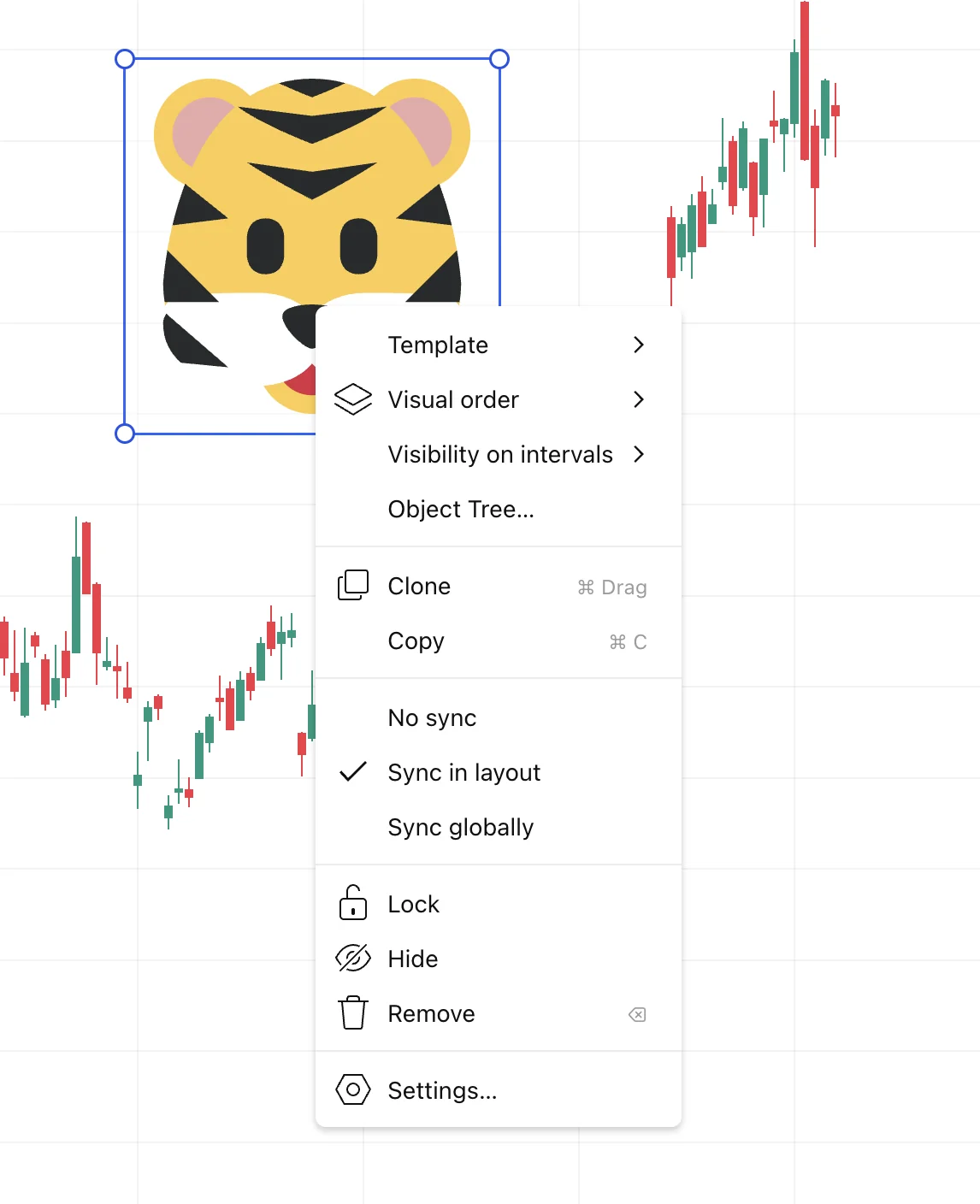
Real-time global drawing synchronization across windows, tabs, and devices requires layout autosave. With autosave disabled, synchronization occurs after a manual save. Changing a drawing’s scope can change where it appears, so check existing objects as well as the default for new drawings.
This is distinct from selective chart synchronization. In a multi-chart layout, enable Symbol sync, Interval sync, or both, then assign matching emoji groups through Chart Syncing. These are chart groups—not emoji added to a layout’s name and not a command to merge work from separate devices.
Avoid competing layout saves
TradingView’s lost-drawings guidance warns that another open version of the same layout can overwrite work, even when the devices show different symbols. Do not assume desktop edits always take priority or that every change is merged safely.
Use one active editing device at a time. If two versions already disagree, first identify which one contains the work you want to keep. Record important settings and drawings before refreshing, restarting, or saving a stale version over it. The lost-drawings guide also recommends disabling autosave to avoid this conflict; doing so means giving up automatic real-time global drawing updates and saving manually instead.
Choose the behavior deliberately: autosave supports live drawing updates, while a controlled manual-save routine can reduce accidental overwrites. Neither replaces checking the destination layout before you continue.
Watchlists and alerts are separate from layouts
Watchlists are account-wide. Switching layouts does not move drawings into the list or turn each listed ticker into a saved chart setup. On the second device, select the intended list and check its symbols separately from your layout checks.
TradingView alerts run on its servers, so a running alert does not require your computer to stay open. Receiving its notification on a phone is a separate step: use the same account, enable the alert’s app-notification option, and allow TradingView notifications in the phone’s settings. Follow the phone notification instructions for your device.
If the alert log shows a trigger but the phone is silent, inspect delivery settings and device notification permissions. That is a different problem from an alert whose condition never triggered. Do not assume all devices will display a notification at exactly the same instant.
Indicator changes do not rewrite existing script alerts
When you create a script alert, TradingView stores a snapshot of the script, inputs, symbol, and timeframe. Later changes to your chart do not alter that running snapshot. The Pine Script® alert documentation explains that you need to recreate the alert to use the changed context.
Using LuxAlgo’s own saved workspaces
On LuxAlgo’s native charting platform, a workspace keeps charts, their symbols and timeframes, drawings, indicators—including added Quant scripts—and panel setup. Changes autosave. Open Workspaces in the chart’s bottom bar to create or switch between named setups.
The workspace documentation describes sharing a copy of the chart layout, panels, or both. Sharing a copy is different from simultaneous editing. Journal trades and notes belong to the LuxAlgo account rather than an individual workspace. Keep names clear if you maintain setups on both platforms, and verify any exported script in its destination environment.
A focused sync troubleshooting checklist
- Wrong drawing: compare account, layout, exact symbol, and the object’s synchronization scope.
- Wrong indicator inputs: verify the saved chart and selected indicator instance; a different chart can have different settings.
- Missing watchlist item: confirm the selected account-wide list.
- Missing notification: check the alert log, app delivery option, and operating-system permissions.
- Conflicting versions: stop editing, preserve the latest work, and resolve which layout to keep before reloading or resaving.
If the issue persists, provide support with the layout URL, affected symbol, device and app version, and a short sequence that reproduces the problem. A universal “Force Sync” instruction, an assumed internet-speed threshold, or deleting layouts is not a reliable diagnosis.
FAQs
How do I sync two screens in TradingView?
For charts in a multi-chart layout, configure the relevant synchronization options and any chart groups. For separate devices, open the same saved layout and check drawing scope. Linking symbols or intervals is different from saving and reopening a layout.
How do I sync my TradingView across devices?
Use the same account, save the current layout, stop editing it on the first device, and open that saved layout on the second. Verify important settings and drawings before continuing. Global drawing updates require the appropriate scope and autosave.
Why are my drawings not syncing in TradingView?
Check that both views use the intended layout and exact symbol, then inspect the drawing’s synchronization scope and save state. If versions disagree, preserve your latest work before refreshing or saving another version over it.
Read next