No-Code AI Trading: Build Strategies in Minutes

LuxAlgo Quant lets you describe a strategy in plain language, review the generated Pine Script®, and run it on a LuxAlgo chart. A simple idea can become a first draft in minutes; checking the rules, costs, and behavior on unseen data takes additional work. “No-code” means you can get help writing the script, not that the resulting strategy needs no review.
Here’s what you need to know:
- Describe your strategy in natural language (for example, “Buy Bitcoin when RSI drops below 30”).
- Quant generates, validates, and helps debug the code.
- Backtest your strategy using historical data. This process is essential for stress testing trading strategies and checking how a system behaves in changing conditions.
- Run it on your LuxAlgo chart for live monitoring and strategy alerts.
Quant lowers the technical barrier to strategy development, making trading automation more accessible for stocks, crypto, and forex. It can also turn any Library indicator into a strategy and backtest it against years of history.
Ready to trade smarter? Let AI handle more of the Pine Script® work so you can focus on the strategy logic, risk controls, and market context.
What You Need to Get Started with LuxAlgo Quant
To get started with no-code AI trading, you need a LuxAlgo account; Quant Charts and Quant are built in, free to start. Every plan includes Quant, with 500 monthly credits on Free, while paid plans provide more credits (5,000 on Premium, 25,000 on Ultimate, and 100,000 on Ultra). A TradingView account is optional, only if you also want to run the script there.
Required Tools and Subscriptions
Start with Quant and LuxAlgo’s native charts for custom indicators and strategies. The Library adds hundreds of LuxAlgo market-structure, trend and momentum tools, one click from any Quant Chart and free to start.
If your goal is strategy generation and Pine Script® development, Quant is the main starting point. If your goal is testing a Library tool as a system, ask Quant to turn the indicator into a strategy and backtest it on the same chart.
Review the script in Code, select Run, and open the chart’s Backtest results. You do not need a TradingView account for that workflow.
No coding skills are required, but basic trading knowledge still helps. Understanding concepts such as timeframes, risk management, entries, exits, and indicators like RSI or LuxAlgo Library indicators will make your prompts more precise and your strategy outputs more useful.
This setup gives traders a practical path from idea to script. Once your account is set up, you can move from generating a strategy to validating it on the chart with less friction than a fully manual workflow.
How LuxAlgo Works with TradingView
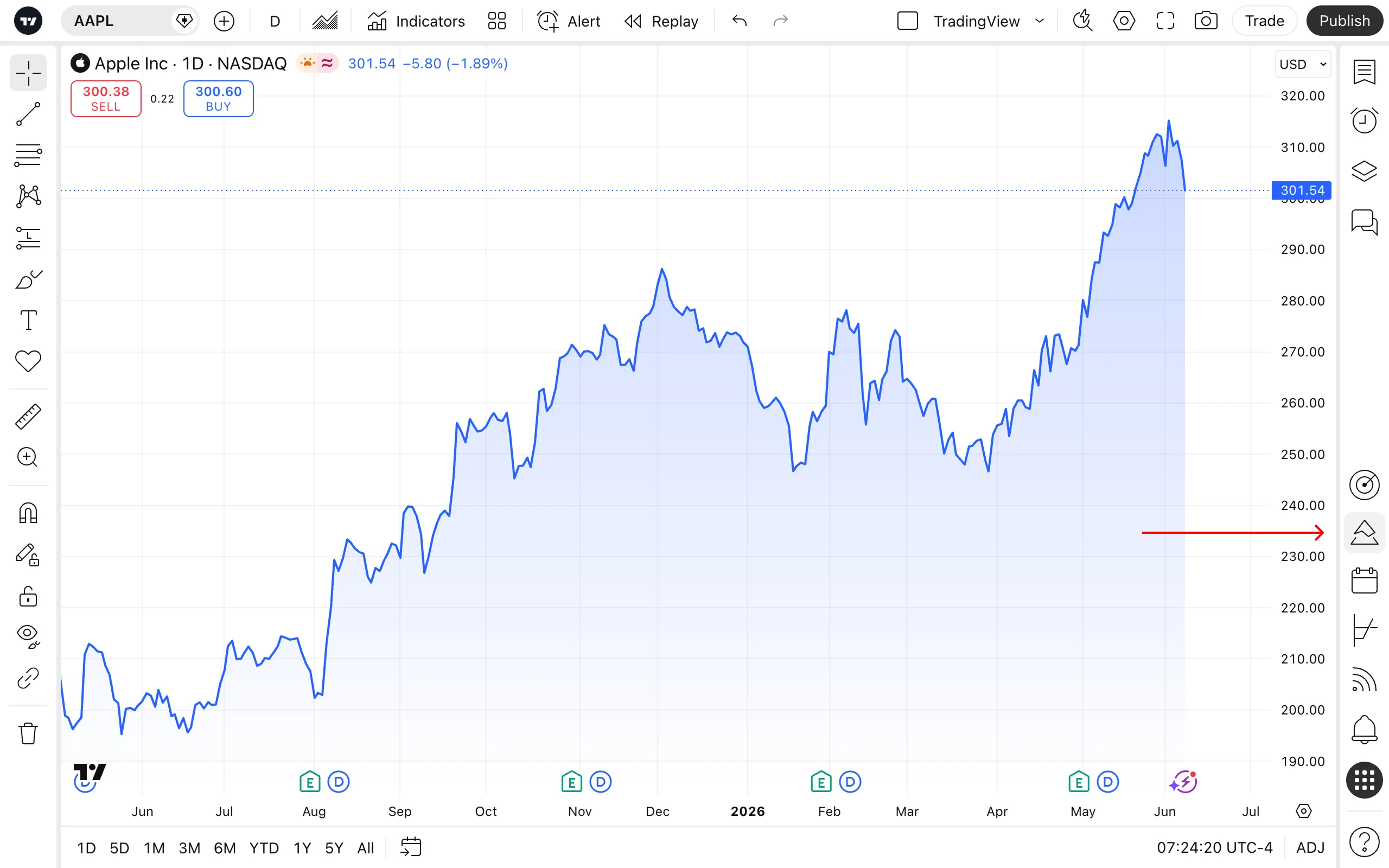
Quant generates Pine Script® for LuxAlgo’s native runtime. Review and run the script on the active chart. If you also want to use it on TradingView, copy it into Pine Editor and retest supported features, inputs, data, and order timing there; identical code does not guarantee identical results across platforms.
TradingView offers its own strategy simulation and alert workflows. Broker connectivity is a separate capability: a Pine Script® strategy does not automatically place live broker orders.
Quant is designed for creating and debugging Pine Script® within a charting workflow. Use that assistance to inspect the actual implementation, not to assume that a generated condition is accurate or that a strategy has an edge.
Step 1: Create Strategies Using Natural Language
How to Access LuxAlgo Quant
Start by logging in to your LuxAlgo account and opening a chart, where Quant is built in. You can review the conversation on one side and the generated Pine Script® on the other while the script is being built, with the backtest on the chart itself.
Because Quant is designed for Pine Script® generation, debugging, and refinement, it works well for both first drafts and iteration. Paid plans include more monthly credits, which is useful if you plan to prototype multiple indicators, test several strategy variations, or repeatedly refine chart logic during the same session.
Writing Prompts to Generate Strategies
The quality of your strategy depends heavily on the quality of your prompt. A simple prompt such as “An RSI oscillator with signals” gives Quant a starting point, but adding specifics produces much better results.
For a more testable version of an RSI-divergence idea, specify both detection and timing:
Create a long-only SPY strategy on one-hour regular-session bars. Use RSI(14) and price pivot lows with three bars on each side. Compare the last two confirmed price pivots: signal bullish divergence when the second price low is lower but its RSI value is higher. Recognize the signal only after the three right-hand bars close, then simulate entry at the next open. Use one share, no pyramiding, a fixed stop 1% below the fill, and a target 3% above it. Plot both pivot locations and the later confirmation bar.
This is an educational baseline, not a recommended risk setting. The confirmation delay matters: placing a simulated entry back on the pivot bar would use information that was not yet available. Add realistic costs and inspect several trades before changing the rules.
You can also specify visual preferences such as colors, labels, whether the output should be an indicator or a strategy, and whether it should appear on the price chart or in a separate pane. That makes Quant especially useful for traders who want to convert chart ideas into code without manually wiring every Pine Script® component.
A screenshot can help communicate layout or a proposed pattern. Ask Quant to distinguish visible observations from inferred rules, then define the calculation and timing explicitly. An image does not reveal hidden settings or guarantee reproduction of a proprietary indicator.
For more complex ideas, break the request into steps. Start with a core rule set, then add filters, risk management, and alerts one by one. This approach makes debugging easier and gives Quant cleaner checkpoints to work from as your strategy evolves.
Step 2: Customize and Refine Your Strategies
Once you have an initial strategy draft, the next step is refining it. This is where Quant becomes especially useful, because it helps you adjust Pine Script® logic without forcing you into a purely manual coding workflow.
AI Code Generation and Editing Options
After Quant generates Pine Script® code, you can refine it with follow-up prompts instead of rewriting the script line by line. For example, you might ask it to add a stop-loss, change an RSI threshold, convert an indicator into a strategy, or simplify logic that is overfitting. This makes it practical for traders who want to prototype faster while still controlling the trading rules.
Use Code to inspect the implementation and Run to apply it. Change numerical parameters in Inputs; ask Quant for changes to the underlying logic. Keep a baseline version so you can compare each revision against something known.
If a script produces a syntax or runtime error, use Fix with Quant and rerun it. For a logic problem, request intermediate plots or an explanation of a specific bar. A successful compile cannot prove that entries, exits, or sizing match your intention.
Its image-to-code workflow is useful here as well. A screenshot of a chart pattern, a manually marked setup, or a visual mockup of an indicator can serve as a starting point, and then text-based follow-ups can refine the final rules into a cleaner Pine Script® implementation.
Preview and Adjust Strategy Logic
Before running a full backtest, preview the logic on charts first. Load the script onto your LuxAlgo chart (or copy it into TradingView) and check whether the entries, exits, conditions, and visual markers match what you intended. This often catches problems faster than a blind optimization pass.
As you review the preview, adjust thresholds, filters, and alert conditions until the behavior becomes more consistent with your actual trading plan. That iterative loop—prompt, generate, preview, refine—is one of the most practical uses of no-code AI trading development in 2026.
Step 3: Backtest with Quant
Run the strategy on LuxAlgo, open Backtest, and review Properties for initial capital, order size, commission, slippage, and other simulation assumptions. Inspect Summary, Performance, Trades Analysis, and Trades Log, then compare specific entries and exits with the chart. Star a baseline run to preserve its script, symbol, interval, inputs, and properties.
Keep idea generation separate from validation. The native backtest guide explains saved runs and results.
Analyze Results and Adjust Parameters
Review key metrics such as net profit, win rate, profit factor, average trade, and maximum drawdown before deciding whether a strategy deserves more attention. A strategy with strong returns but unstable drawdowns may need position-sizing changes, better filters, or different exit rules.
Change one hypothesis at a time. For the divergence example, compare the same strategy with and without a trend filter, holding the symbol, interval, period, costs, and sizing constant. Review trade count and distribution as well as the headline return. Reserve a later period for evaluation and avoid repeatedly adjusting rules to fit it.
This loop—test, diagnose, refine, and retest—is one of the biggest advantages of having Quant write and backtest the Pine Script® on the same chart.
Step 4: Monitor on LuxAlgo
Continue monitoring the strategy on LuxAlgo’s native charts and configure alerts for the supported workflow you intend to use. Native alert limits vary by plan, and webhook alerts are available on paid plans, as described in the chart documentation. Verify the actual trigger and message before relying on an alert; a backtest result is not a live broker connection.
Optional TradingView Setup
If you also use TradingView, copy the reviewed script into Pine Editor, save it, and add it to a chart. Retest the logic and order timing on that platform’s data. Use Quant to help resolve errors, then rerun the same checks after a revision.
In TradingView’s alert interface, choose the trigger appropriate to your script, such as order-fill events or supported alert() calls, and verify the message contents. TradingView alerts run from a saved copy of the script and settings; recreate the alert after changes that should affect its behavior.
If you plan to automate actions beyond TradingView, alerts can also be connected to webhooks for external execution workflows. Even if you do not automate live orders, well-structured alerts make strategy monitoring much easier.
Once alerts are active, keep reviewing how the strategy behaves in real time. Live market behavior can expose issues that were not obvious in historical testing, especially in faster markets or lower timeframes.
Track Performance Using LuxAlgo Tools
Keep the native chart, saved test runs, and actual outcomes easy to compare. LuxAlgo’s Journal supports manual trade records and review; it is separate from simulated backtest trades.
If you are using placeholders or timing-sensitive calculations in Pine Script®, review the strategy settings carefully inside TradingView so the script behaves as intended. Small configuration differences can materially change real-time results.
To scan many markets, open Library tools on a Quant Chart and check other symbols for conditions that match the logic you are developing. That keeps your strategy process repeatable instead of tied to a single chart.
Step 5: Improve Strategies with Community Resources
Strategy development does not end after deployment. Ongoing refinement, feedback, and new ideas from other traders can help you spot weaknesses, improve clarity, and adapt to changing conditions.
Refine Strategies with Optimization Tools
Compare a small, planned set of input values or one logic change at a time, and let Quant implement each revision. No shortcut removes the need for untouched evaluation data and realistic execution assumptions.
That combination is useful because optimization is not only about finding better numbers. It is also about improving the logic behind the strategy. A strong workflow is to identify a weakness from testing, ask Quant to modify the code, then compare the new version against the previous one instead of blindly searching for better settings.
This keeps the strategy grounded in understandable rules rather than turning it into an overfit model that only looks good on historical data.
Learn from Community-Shared Strategies
Community examples can be useful starting points for new ideas, especially when they show how other traders structure entries, exits, filters, or alert workflows. A shared strategy can often be improved by asking Quant to adapt it to your preferred market, timeframe, or risk profile.
“tons of people willing to help share new strategies they have come up with” — Kevin Ortega, quoted on LuxAlgo.
Still, community strategies should be treated as research inputs rather than finished systems. Validate them with out-of-sample testing, compare them across multiple conditions, and paper trade before committing real capital. That process is much easier when Quant can quickly convert feedback into Pine Script® revisions you can test again.
Conclusion
LuxAlgo Quant makes it possible to start with a written idea instead of a blank code editor. Use it to draft, debug, and refine the script while keeping the trading rules understandable and testable.
A practical workflow is to describe the rules, review and run the code on LuxAlgo, check native backtest settings and trades, compare controlled variants, and monitor the chosen version. Fast prototyping is useful when it leaves more time for validation.
Whether you trade stocks, crypto, or forex, this workflow reduces the technical friction of Pine Script® development. Quant helps with generation, debugging, and iteration, while LuxAlgo’s charts (or TradingView) give you the charting and alert environment needed for practical use.
Ready to get started? Quant makes it easier to build data-driven indicators and strategies without needing to code everything manually. You can begin with a simple concept, test it on your chart, and expand it into a more complete system over time.
For traders who want a more modern Pine Script® workflow, Quant is one of the most natural starting points because it is built specifically for Pine Script® indicator and strategy development rather than general-purpose chat.
FAQs
How many AI credits are needed to create and backtest one strategy?
The exact credit cost depends on the task and the workflow you use. Quant is included on every plan: 500 monthly credits on Free, 5,000 on Premium, 25,000 on Ultimate, and 100,000 on Ultra. If you need larger-scale strategy work, those higher limits matter more than trying to estimate a single universal credit cost per strategy.
Can I automate live trades from TradingView using these strategies?
TradingView alerts can send webhooks to a separately configured execution service, but a strategy script does not automatically submit live broker orders. Broker support, routing, credentials, risk checks, and monitoring must be configured separately. Test duplicates, delays, rejected orders, and actual fills before relying on the full chain.
What should I include in my prompt to get better strategy results?
If you want better results from Quant, the most important thing is clarity. A good prompt usually includes:
- Market and symbol: what you want to trade.
- Timeframe: such as 5-minute, 1-hour, or daily.
- Strategy type: trend-following, mean reversion, breakout, scalping, and so on.
- Entry and exit logic: the exact conditions that should trigger actions.
- Risk management rules: stop-loss, take-profit, position sizing, or session restrictions.
- Output type: whether you want an indicator, strategy, alerts, or chart visuals.
The clearer the prompt, the easier it is for Quant to generate Pine Script® that actually matches your trading idea. For more involved builds, start with the core logic first and then refine the script in smaller steps.
References
LuxAlgo Resources
- LuxAlgo Quant
- Quant Introduction
- Making Strategies with Quant
- Native Backtest Guide
- Backtesting with Quant
- LuxAlgo Pricing
- LuxAlgo Library
- The Key to Understanding RSI (Relative Strength Index)
- Stress Testing for Trading Strategies
External Resources
Read next